Password Managers vs. Browser-Saved Passwords: Security, Cost, and Convenience
Two habits keep most people out of trouble online: not reusing passwords, and actually being able to recall the ones you use. Browser password saving and dedicated password managers both solve the second problem. They are not interchangeable, though, and the differences show up exactly where it hurts — email, banking, work accounts, and anything with a saved card on file.
Both options beat the alternatives. A note on your phone, a spreadsheet named passwords.xlsx, or one password recycled across forty sites are all worse than either a browser vault or a manager. The useful question is which one fits your devices, your family, and the level of risk you're willing to think about.
When you click Save in Chrome, Edge, Safari, or Firefox, the credential goes into a vault the browser manages, usually synced to whichever account you signed into the browser with. That's the appeal: sign into a new phone with your Apple or Google account and everything follows you. It's also the weakness. The vault is fused to an account that probably also holds your email, your files, and your calendar.
A dedicated password manager is a separate application with its own browser extension and mobile app. It is unlocked by a master password, often with a biometric or a second factor on top. Properly built managers encrypt your data on your device and store only ciphertext, so the company running the service cannot read your logins. They work across every browser and operating system, which matters if you use a Mac at home and Windows at work.
Both encrypt stored credentials. Both autofill logins and generate random passwords. Neither is a shield against malware already running on your machine — if something is logging your keystrokes, it will capture your master password just as happily as your browser vault.
Both categories of product have had incidents over the years, and it's reasonable to assume more will happen. The question that matters is what an attacker walks away with. If the stolen vault is protected by a long, unique passphrase and second-factor authentication on the account, it is close to useless to them. If it's protected by a short password you also used on three other sites, the picture changes fast.
This is why the strength of your vault password matters more than the logo on the box. And it's an argument for tools that genuinely keep your master password off their servers: the worst case becomes a well-encrypted file nobody can open rather than a customer-support reset away from your entire digital life.
Browsers are free, and that's not nothing. A family already paying for phones and streaming may not want another subscription.
Password managers generally offer a free tier for one person, plus paid individual and family plans. Free tiers usually limit how many devices sync, or hold back sharing and secure notes. Paid family plans typically cover several people for less than the cost of separate subscriptions. What you're buying is cross-platform sync, real sharing, secure notes, file attachments, emergency access, breach alerts, and support that answers.
Weigh it against a single compromised banking login and the arithmetic usually settles itself.
On a phone, autofill quality is where products differ most, and it's worth testing on your own device before committing. On desktop, a good manager is nearly invisible: the extension fills the field, you tap a fingerprint, you're in.
Sharing is the part browsers handle badly. A household needs the streaming account, the utility portal, the school system, the insurance login. The usual workaround — one shared browser profile, or handing your partner your Google password — is a recipe for confusion and a much bigger security problem than the one you were solving.
A manager family plan gives each person a private vault plus one shared folder for joint logins. It also supports emergency access, so a partner can reach critical accounts if something happens to you. Browsers don't offer that at all.
One caution: if you store both a password and its one-time codes in the same vault, you've folded two factors into one. Fine for a pizza account. Keep the codes for your email and bank in a separate authenticator app or on a hardware key.
The practical answer isn't either/or. Pick one password manager as your source of truth, install it everywhere, and stop relying on the browser vault for anything that matters. Some people keep a couple of throwaway logins in the browser, which is harmless as long as the important ones are elsewhere.
Don't try to fix two hundred logins in one evening. Change the handful that would ruin your month — email, bank, primary card, work — and let the manager capture the rest as you go. Every time a site asks you to log in over the next few weeks, save it there instead of in the browser. Within a month the habit is automatic.
Then do one last thing: open your browser's password settings and look. Two minutes of scrolling will tell you whether years of logins are still sitting in a place anyone at your keyboard can read.
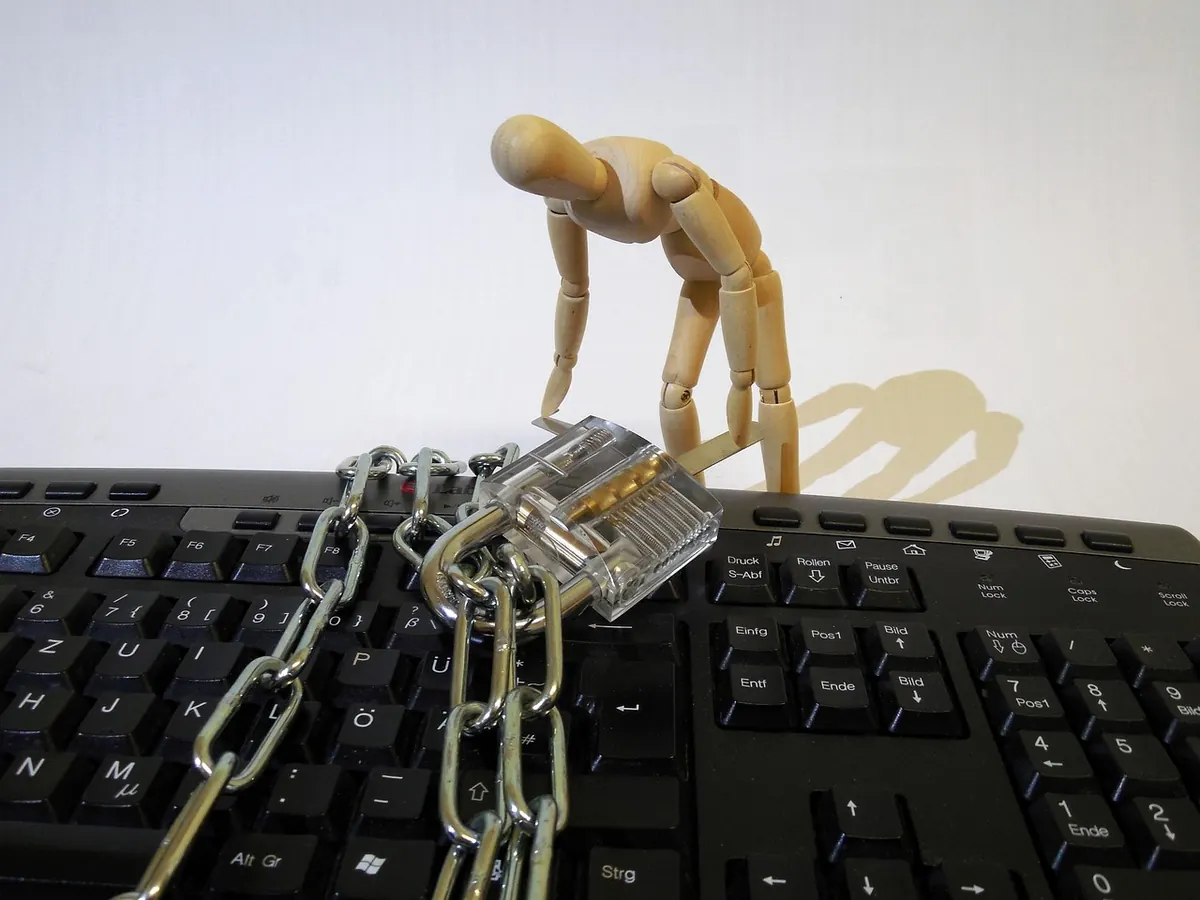
Photo: succo / Pixabay
Previous Post
Data Breach Notification Letter: A Beginner's Guide to Your Next Steps
Next Post
How to Build a Ransomware-Resistant Backup Plan for a Small Business